

Run a manual run
You open a run, walk its tests next to the site under test, and mark each one. Nothing ever navigates on its own — you move on when you choose to.
Open a run
Section titled “Open a run”-
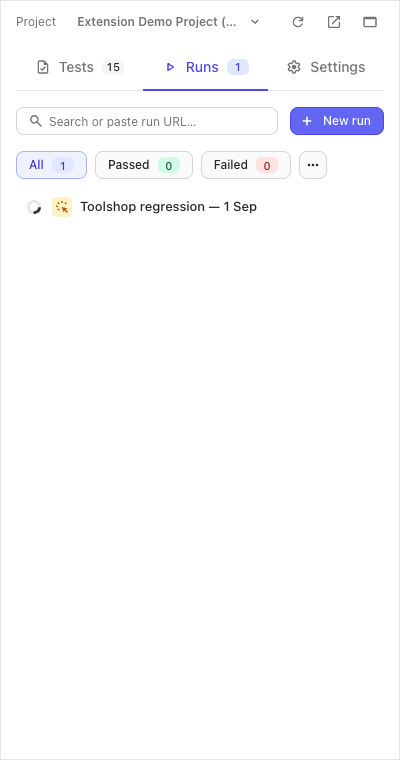
Runs tab. The list shows the project’s runs with their progress.
-
Click a run — or paste a run’s URL from the web app into the search box; the same box also filters the list by title as you type. (New run opens the web app’s create-run page — runs are made there and then show up in this list.)
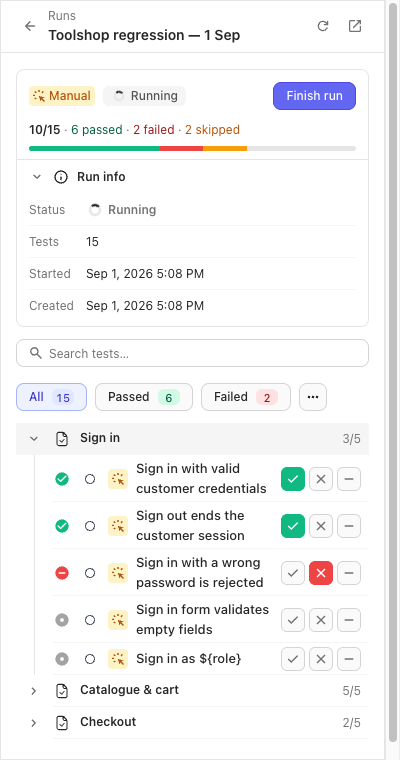
The run opens as a checklist grouped by suite, with a progress bar and status chips to filter by.
Mark a test
Section titled “Mark a test”Quick marks live right on the checklist: every row carries its own ✓ / ✗ / − buttons. For everything else — steps, a comment, the log — click the test’s title to open it.
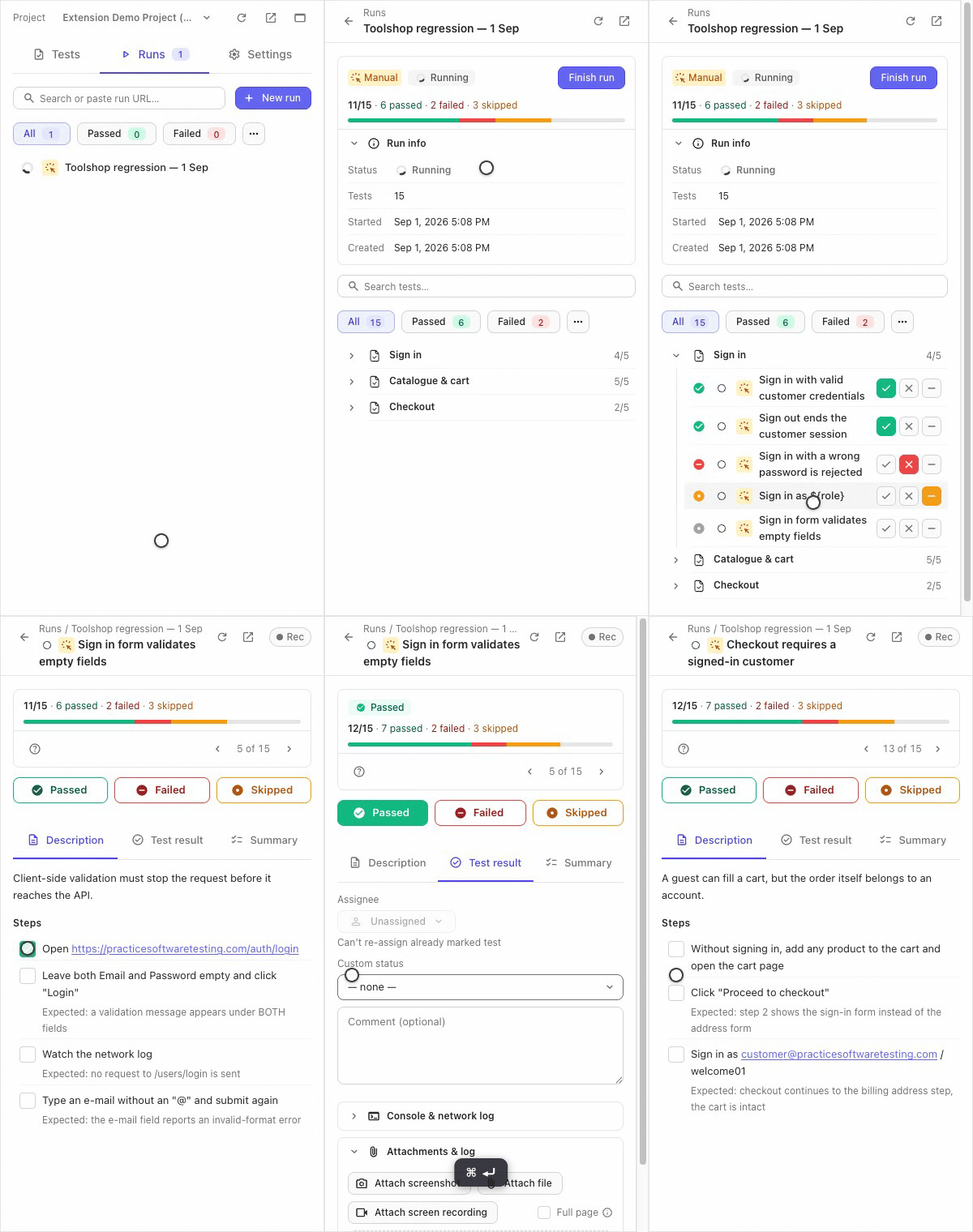
- Steps tick on click: once for pass, again for fail, again for skip. Ticks sync to the server so a colleague sees them (in basic mode they stay local).
- Passed / Failed / Skipped save immediately and stay put — moving on is the › arrow of the n of N pager under the progress bar, or the hotkeys below.
- A comment saved with a status lands on the result in the web app too.
- Failing a test can attach the console & network log of the tab under test automatically — that is the Rec recorder.
- A parametrized test shows one row per example; each row is marked on its own.
Hotkeys, in the test view only:
| Keys | Action |
|---|---|
Cmd/Ctrl+Enter | Passed |
Cmd/Ctrl+U | Failed |
Cmd/Ctrl+I | Skipped |
N | Next still-untested test |
↓ / →, ↑ / ← | Next / previous test |
Stay in sync
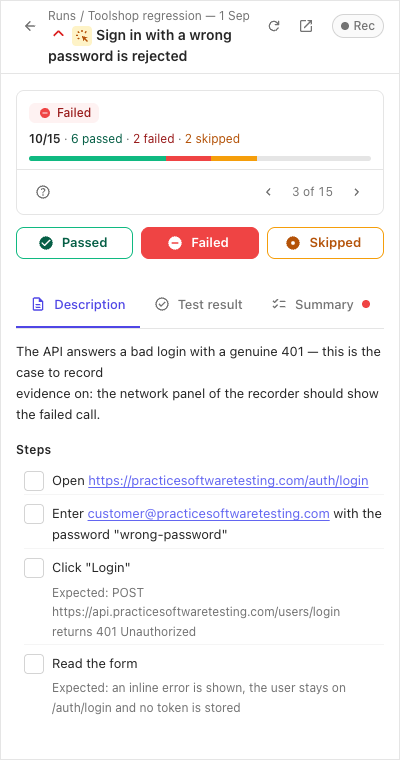
Section titled “Stay in sync”An open run re-reads itself about every 20 seconds while you look at it, so a colleague’s marks land on their own. The server’s state wins; your own in-flight write is never overwritten by a poll.
Finish the run
Section titled “Finish the run”Finish run on the run screen asks once — “Finish run? Pending tests will be marked skipped.” — and closes the run. It needs the full (not basic) mode.
If the network drops
Section titled “If the network drops”A status that fails to save is not lost: it queues in the panel, the row
gets a queued badge, and a bar counts the changes pending. They replay
when the connection returns — or press Retry on the bar.
If it didn’t work
Section titled “If it didn’t work”- The run you pasted doesn’t open — the panel says when a URL leads nowhere it can reach: check the project the panel is on matches the URL.
- Finish run is greyed out — “Finish run needs an active … web login”: you are in basic mode; see Connect.
- Ticked steps aren’t visible to a colleague — basic mode again; steps sync only with a session.
- Marks from a colleague don’t appear — the panel polls only while the run is open and the panel is visible; press the header’s Refresh for an immediate pull.